

Help & Documentation
Quick steps
Quick Steps video here
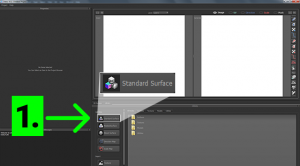
1. Create a Standard Surface
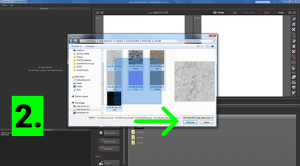
2. Add New input texture(s) such as color, normal, height, custom, etc.
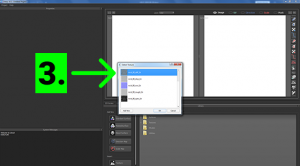
3. Load the imported texture(s) into Standard Surface
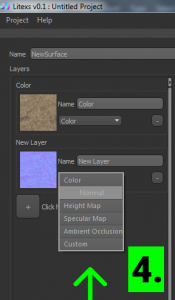
4. Add new layers (optional), and set theirs layer type, as normal, Height, AO, etc…
Synthesis parameters in the Properties Panel
Patch Size
The Patch Size is the dimension of the randomly cut units of the input texture. These individual patch units build the output texture. The default value is 20 px.
The suggested Patch Size is approximately 15-23% of the input Texture (15-23% of the smaller dimension of a non-squared input texture, e.g.: 520×300 px input almost always gives good output result with 60 px Patch Size value) Smaller texture structures (like fine gravel allow for a smaller patch size, larger structures, for example bark maybe needs larger Patch Size value.
Patch Boundary
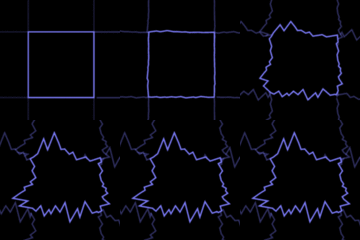
Increasing Patch Boundary
Regular square at Patch Boundary 1, and more organic shapes at higher values. Litexs tries to find the best shape to attain the best similarity on connected borders. These individually shaped patch units builds the output texture.
50% Patch Boundary of Patch Size help to achieve more natural result in the output texture.
The maximum Patch Boundary value can be half of the Patch Size value.
Feather
Feather is the width of antialiasing area around the patches. Increase the feather value to hide the borders among the patches in the output texture. The default feather value is 4 pixels.
Error Threshold
The default error threshold value is 0.1. Lower values force Litexs to find greater similarity among the texture patches. Lower values increases the synthesis computing time. Too small a threshold value causes artificial repeats in the output textures.
Max Patch Tries
This number is the limit of the attempts to find the best fitting patch to an other. The default Max Patch Tries 20.
The System Message Panel notifies you, if Litexs needs a higher Max Patch Tries number to achieve better output results.
E.g.: More than half of the patches timed out. Try using higher error threshold or more patch tries!
Generation settings
Similarity Mode
Default is „All layers” – Litexs sampling from all input layers.
You can choose the „First layer only” option.
Method
The default method is Patch Base Cutout.
Make Input Seamless
Unchecked is default.
Check this option only if both of the following conditions are true:
1. you want to use the scale map, and 2. the input texture is not seamless.
This option turn the input texture seamless, but keep its original input dimension, to prepare the scale map painted synthesis.
Add New and Import (Library Panel)
Standard Surface
Standard Surface – in this node you can import the input textures to prepare the synthesis. Any number of layers can be given to the Standard Surface. Defined layer types: Color (diffuse color, albedo), Normal , Height, Ambient Occlusion and Specular. Optional layer types: Custom (e.g. in the case of Glossy, Bump). Procedure:
- Create a Standard Surface node in the Add New panel.
2. Import any number (or shape, or size) of textures (for example: Color, Diffuse Color, Albedo, Normal, Displacement Map, Specular, etc. or Custom).
3. Select the synthesis settings desired in the Properties Panel (Patch Size, Feather, Output Size).
4. Start the synthesis.
5. Save the synthesized outputs.
Masked Surface
In this node you can import the NON-SQUARE input textures to prepare the synthesis. Any number of layers can be given to the Masked Surface. Defined layer types: Color (Diffuse Color, Albedo), Normal , Height, Ambient Occlusion and Specular. Optional layer types: Custom (e.g. Glossy, Bump). Masked Surface is a maskable Standard Surface. It is identical in all other respects. Procedure:
- Create a Masked Surface node in the Add New panel.
2. Import any number (or shape, or size) of textures and assign to it the mask previously made. The mask will use black-and-white areas, while the synthesis will use only white areas. The following may be masked layers: Color, Diffuse Color, Albedo, Normal, Displacement, Specular, etc. or custom.
3. Select the synthesis settings desired in the Properties Panel (Patch Size, Feather, Output Size).
4. Start the synthesis
5. Save the synthesized outputs.
Mixed Surface
In this node you can import existing Standard and Masked Surfaces, which can be edited layered one over the over, with a synthesizable mask. During synthesis, Mixed Surface will use the settings for the Standard or Masked Surfaces that have been imported into it. For Mixed Surface synthesis, as well as the settings for the imported Masked and/or Standard Surfaces, the settings for the synthesis of the Mixed Mask that penetrates them must also be defined (Properties panel). Procedure:
- Create a Mixed Surface node in the Add New panel.
2. Assign any existing Standard and/or Masked Surface(s) to the Mixed Surface
3. Select the desired synthesis settings, the imported Surfaces, and the settings for the Mixed Mask that penetrates them (Patch Size, Feather, Output Size)
4. Start the synthesis
5. Save the synthesized outputs.
Custom Model
In addition to the PBR rendering module’s (3D Preview) default geometric forms (plane, sphere, cylinder, cube, treetrunk, bridge), any polygonal geometric shape with the extension .obj can be imported
- Create a Custom Model node in the Add New panel.
2. Using import, assign any polygon model to it (OBJ format is supported)
© 2018 Open Dimension Art and Technology Kft. All rights reserved